
Image Marker

JPG, PNG, WebP, GIFAdd pins, comments, downloads and review boards after upload.
More review options
PDF includes your numbered comments. PNG, JPG and WebP export the marked-up image only.
A quick visual guide
Image Marker
01Input
Image Marker turns one image into a structured review pack. You can add numbered pins, arrows, boxes, freehand marks, comment statuses, reviewer notes and a branded marked-image download.
02Adjust
Upload an image first. The download, zoom and review-board controls appear once there is an image to work with, which keeps the first screen focused on the one action that matters.
03Check the result
Local markup and downloads stay in your browser. If you create a Share link or Review board, your image and markups are uploaded to XO3D Labs so other people can open the link.
Open each step for the practical check. Diagram, not a generated result.
Make the feedback usable
Point to the part of the image that needs attention, then describe the change you need. Keep separate changes in separate notes so the next person can act on each one.
Instructions, limits and next steps
For visual feedback, include three things: where the issue is, what needs to change and what a successful result should show.
A clearer review note
“Make it better” leaves the artist guessing.
An illustrative alternative: “On the front edge, reduce the reflection that hides the bevel. Keep the bevel readable without flattening the rest of the metal.”
This example is an illustrative note, not a quote from a client project.
Check earlier feedback as well as the new image
In his recorded quality-control walkthrough, XO3D's Head of 3D, Connor Hamilton-Smith, revisited earlier client comments while checking a new material still. A gap and an engraving that had already been flagged were still present. The review caught both before that still went to the client.
Keep resolved and unresolved points visible during a review, and compare the next version against the actual requested changes.
Local work and hosted sharing
Local annotation and a hosted review link are different actions. Creating a hosted link uploads the selected material needed to make that link work. Check the sharing option and access requirements before using it for confidential work.
Common questions
What should I include in a note? Identify the location, the intended change and the visual reason. Include a reference when it resolves ambiguity.
Should I put several changes into one note? Use one note per actionable change when the issues can be resolved independently.
Do I need a collaborative board for every image? No. Use the simplest workflow that completes the review. Explore Boards when the job needs the hosted review features described in the current plan.
Need a shared review workflow? Labs Pro (Boards and Renderer).
Next guide: Creative review and feedback
Updated 30 October 2026 by XO3D Labs
How to mark up an image online
Image Marker puts numbered pins, arrows, boxes and comments on a photo or picture in your browser. Marking and downloading are free and need no sign-up. The free downloads carry a small XO3D label in the bottom-left corner.
How to mark up an image online
Mark up a photo, a render or any picture in four moves. Add the image, mark what needs attention, write the note, then download. Nothing leaves your browser until you choose a share link or a review board.
- Add the image: JPG, PNG, WebP or GIF, or choose Try sample. SVG is not accepted.
- Pick a mark: Pin, Arrow, Rectangle, Ellipse, Line, Text or Draw (keys 1 to 7), then a colour and stroke width.
- Write the note: each mark takes a comment and a status. Use Add a note for a comment about the whole image.
- Download PNG, JPG or WebP for the marked image only, or PDF for the marks plus numbered comments. Marked image downloads carry a small XO3D label in the bottom-left corner.
- Share only if you need to. A share link or a review board lets other people open the image and marks.
Large picture? Compress the image first or resize the image. Resize or compress explains which to use.
What it supports
| Feature | What you get |
|---|---|
| Input | JPG, PNG, WebP or GIF. SVG is not accepted. |
| Marks | Pin, arrow, rectangle, ellipse, line, text and freehand drawing. Colours and stroke width can be changed. |
| Notes and statuses | A comment on each mark. Statuses: open, in progress, done, question and rejected. |
| Downloads | PNG, JPG and WebP of the marked image. PDF with numbered comments. Marked image downloads carry a small XO3D label in the bottom-left corner. |
| Keyboard | 1 to 7 choose a mark, S selects, Ctrl+Z undoes, Ctrl+Y redoes, Delete removes the selected mark. |
| Limits | We have not published a size limit for local images. A share link has a cap of about 15 MB and is deleted after 7 days. Free review boards hold 12 images. |
Local work or hosted: what leaves your browser
| Action | What happens |
|---|---|
| Marking, comments and downloads | Stay in your browser. |
| Share link | Uploads the image and your marks to XO3D Labs. Needs your email address. About 15 MB maximum. Deleted after 7 days. |
| Review board | Uploads the image and marks. Needs you to sign in. Free boards hold 12 images. |
Check the option and who can open it before you use either for confidential work. See creative review and feedback tools for the wider workflow.
A usable note on a real frame
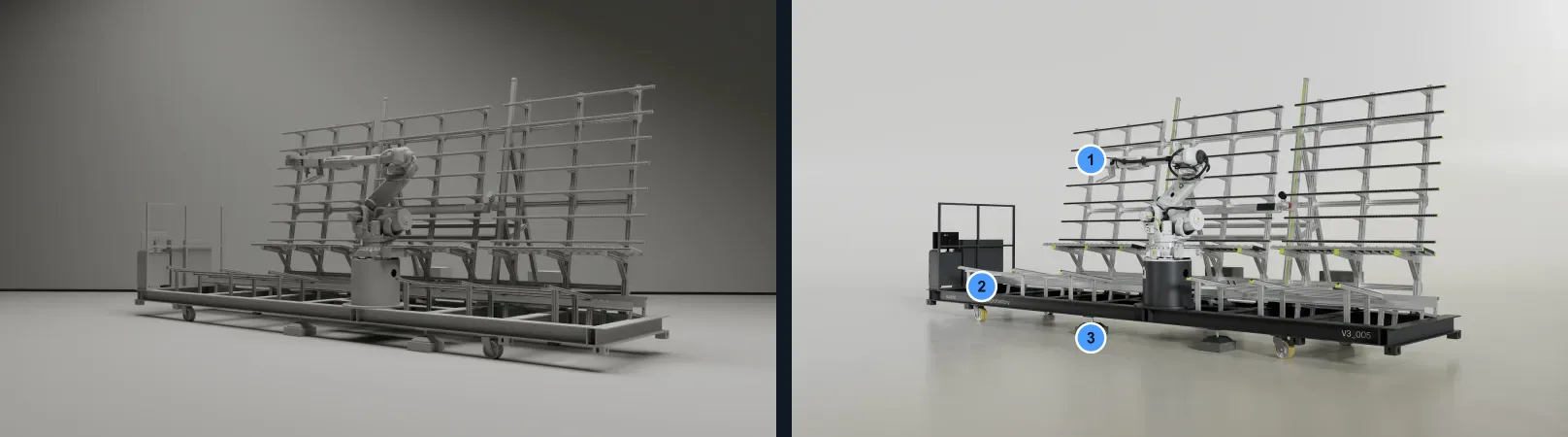
A good note says where the issue is, what should change and what success looks like. These three notes are illustrations written by XO3D on a published frame, grey card on the left and final on the right.
- Pin 1, the gripper at the end of the arm: the metal reads flat against the rack behind it. Add a soft edge highlight. Success: its outline reads at a glance.
- Pin 2, the front rail label: the wording is small and low in contrast against the black steel. Lift the contrast slightly. Success: it can be read at full size without zooming.
- Pin 3, a foot under the frame: the contact shadow is light. Darken it a little. Success: the machine looks planted on the floor.
Jobs it suits, and when a simpler annotator is enough
Typical jobs:
- Marking corrections on a CGI still.
- Sending numbered notes to a retoucher.
- Checking a new version against the earlier notes.
Tips: use few marks, keep to one change per note, and pick a colour that contrasts with the picture.
A quick arrow on a screenshot needs any annotator. Numbered, status-tracked feedback is where Image Marker earns its place. Audit product images, then mark what to fix, or read how to review CGI renders.
More tools: render review tools and image tools for 3D artists.
Guides for this tool
- Resize or compress an image: which change do you need?
- What goes into a 3D render?
- Review product CGI with evidence that makes the next decision clear
Frequently asked questions
What does Image Marker do?
Image Marker lets you mark up a photo or picture online with numbered pins, arrows, boxes, lines, text and freehand drawing. Each mark takes a comment and a status, so you can export clear feedback for CGI and product-image revisions.
Are my images uploaded to a server?
Not for local marking or downloads. Share links and hosted review boards upload the image and markups to XO3D Labs so other people can open them.
Is Image Marker free, and do I need to sign up?
Marking an image and downloading the marked image or PDF are free, need no sign-up and run in your browser. A Share link asks for your email address. A Review board needs you to sign in. Free boards hold 12 images.
What file types and sizes can I use?
JPG, PNG, WebP or GIF. SVG is not accepted. We have not published a size limit for local images. A Share link has a cap of about 15 MB.
Does the download have a watermark?
Marked image downloads (PNG, JPG and WebP) carry a small XO3D label in the bottom-left corner. The free tool keeps it on every marked image download.
Can I export my comments?
Yes. The PDF download includes your numbered comments. PNG, JPG and WebP export the marked-up image only.
How long does a share link last?
A share link lets anyone who has it view your image and marks. It is deleted after 7 days. Creating one asks for your email address.
Should I use a share link or a review board?
Use a share link to send one image and its marks for a quick look. Use a review board when several people review several images over time. A board needs you to sign in, and free boards hold 12 images.
Who created this tool?
XO3D is a UK-based, director-led product CGI studio headquartered in Stevenage, working with brands across the UK and internationally. XO3D Labs is its free tool suite for the CGI and product-marketing community.