

Start with a texture
Choose a photo or height map to preview its surface detail.
Supported files and channel conversion
Change the green-channel convention of an existing tangent-space normal map. Red, blue and alpha stay byte-for-byte unchanged, including colour behind transparent pixels. This mode does not generate new normals, resize the map or change its colour space.
Accepts non-interlaced 8-bit RGB, RGBA or grayscale PNG, up to 2048 pixels per edge and 20 MiB. Palette, animated and 16-bit PNG, JPEG and WebP are not accepted in this exact-channel mode.
When conventions differ, the operation is G = 255 - G. Selecting the same convention leaves all pixels unchanged. The original 64 × 64 sample includes alpha variations for checking preservation. Its shape is synthetic, not a measured surface.
A green flip does not repair a different tangent basis, UV seams, incorrect colour-space import or an object-space normal map. Declare the convention from your source/export settings; it cannot be reliably detected from image colours. Avoid flipping green again in the destination application.
See the worked example

A quick visual guide
Normal Map Creator
01Input
Normal Map Creator is a free online normal map generator for CGI and real-time 3D work. It turns greyscale height maps, bump maps, diffuse photos and texture references into tangent-space normal maps, then exports displacement, ambient occlusion and specular support maps from the same source image.
02Adjust
A normal map is an image that stores a surface direction in each pixel. In a tangent-space normal map the red, green and blue channels hold the X, Y and Z parts of that direction, so a renderer can shade a flat or low-poly surface as if it had the fine detail baked into the map. It changes how light is shaded, not the silhouette of the model. The glTF 2.0 specification describes the same encoding: red maps to X, green to Y and blue to Z in tangent space, stored with a linear transfer function.
03Check the result
Upload a photo, height map or bump map, or choose a sample, then tune the strength, level, blur and filter (Sobel, Scharr or Prewitt). Preview the generated normal map on a cube, sphere, plane or cylinder, and use the invert controls to match your engine convention, including the common DirectX versus OpenGL green-channel difference. Then download the result. It is free, needs no account and runs in your browser.
Open each step for the practical check. Diagram, not a generated result.
Free online normal map generator
Using the normal map generator
A normal map is an image that stores a surface direction in every pixel, so a flat or low-polygon surface can be lit as if it had fine detail. This free generator turns a photo, height map or bump map into one in your browser: check it on a live 3D preview, flip the DirectX or OpenGL green channel, then export normal, displacement, ambient occlusion and specular maps. No sign-up, nothing uploaded.
Instructions, limits and next steps
Build the surface response
Use a height or bump image when you have one. A photograph can provide a starting point, but its shadows and colour changes are not measurements of surface height.
Images are processed in your browser. Choose the export format and dimensions before downloading. A larger output does not add detail that was missing from the source.
- Load a source image and choose a starting preset such as Balanced, Fabric or Concrete.
- Adjust the detail while watching the 3D preview. Check broad shapes before making the small detail stronger.
- Check the normal convention expected by the destination shader. Use the DirectX green preset or relevant inversion control when that workflow requires it.
- Export the selected map or map set. Test the file in the destination material, not only in this preview.
Maps and exports
The tool provides normal, displacement, ambient occlusion and specular map outputs. Download individual maps or the set as a ZIP. Export controls offer PNG, JPG and WebP, with Original, 1K, 2K and 4K size options.
For technical map data, start with PNG so lossy image compression does not introduce an additional variable. The displacement, AO and specular outputs are derived from the source image; they are not a scan of the material or a bake from a high-resolution mesh.
Convert an existing normal map
Choose Convert an existing normal map for an existing tangent-space normal PNG. Declare the source and destination conventions: when they differ, the converter changes only G = 255 - G. Red, blue and alpha remain byte-for-byte unchanged, including RGB behind transparency. It does not resize, regenerate normals or change colour space.
This exact-channel mode accepts non-interlaced 8-bit grayscale, RGB or RGBA PNG up to 2,048 pixels per edge and 20 MiB. It does not infer the convention or repair a different tangent basis, UV seam or object-space normal map.
Common questions
Why do raised details look recessed? Check the source interpretation and normal convention first. A green-channel mismatch can change the apparent direction of relief. Use a simple feature whose intended shape you know before adjusting the whole material.
Does a normal map change the silhouette? A normal map changes the shading response. It does not add the geometry needed to change the outline of a model.
Can this recover the exact surface from a photograph? No. Lighting and colour are mixed into a photograph. Treat the result as a material starting point and compare it against real surface reference.
Should I use the strongest setting? Use the strength that matches the surface. Excessive detail can make fine fabric look carved or turn shallow wear into deep grooves.
Next actions: Fix a normal map before changing the lighting · Check the texture repeats · Adjust roughness
More material checks: Create a height or bump input · Measure edge mismatches · Compare bump, normal and displacement
Pack selected material channels or split an RGBA PNG. Select the channel mapping explicitly and treat packed maps as data in the destination material.
Updated 30 October 2026 by XO3D Labs
How the normal map generator works
This guide explains what a normal map is, how the generator above makes one, and which green channel your software expects. Every engine row comes from the vendor's own documentation and carries the date it was checked.
What is a normal map?
A normal map is an image that stores a surface direction in every pixel. In a tangent-space normal map the red, green and blue channels hold the X, Y and Z parts of that direction, so a renderer can light a flat or low-polygon surface as if it had fine detail.
A flat area encodes as RGB 128, 128, 255, a pale blue. That is why most normal maps look blue. Areas that tilt move the red and green values away from 127.
A normal map changes the shading response only. It does not add the geometry needed to change the outline of a model. This generator makes tangent-space maps. An object-space normal map is a different kind of map that the converter below does not repair.
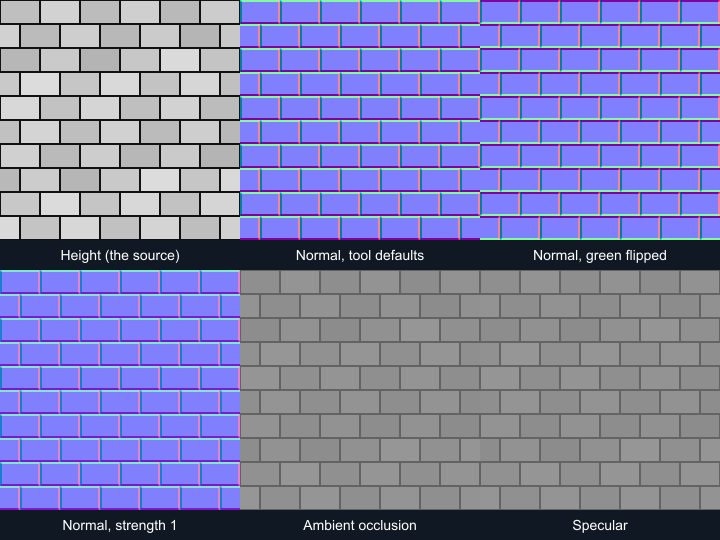
How to make a normal map from an image
- Load a source image: a photo, a height map or a bump map, or one of the six built-in samples. A height or bump image gives the most reliable result.
- Choose a starting preset such as Balanced, Fabric or Concrete, then adjust Strength, Level, Blur or Sharpen and the edge filter (Sobel, Scharr or Prewitt).
- Rotate the 3D preview on a cube, sphere, plane, cylinder or your own .obj. Check broad shapes before making the small detail stronger.
- Match the green channel to your software. Use the DirectX green preset or Invert G when your destination expects it, or convert an existing normal map with the converter.
- Export the normal map, or the set as a ZIP, as PNG, JPG or WebP at Original, 1K, 2K or 4K. Test the file in the destination material, not only in this preview.
A photograph is not a height measurement. Lighting and colour are mixed into it, so treat the result as a material starting point and compare it with real surface reference.
Normal map, bump map, height map and displacement map
These terms overlap, so the table separates what each map stores. Bump, normal or displacement? goes deeper.
| Map | What each pixel stores | In this tool |
|---|---|---|
| Normal map | A surface direction, with red, green and blue holding X, Y and Z | The main output. Lights a surface as if it had detail. |
| Bump map | Height as grey brightness | A valid input. |
| Height map | Height as grey brightness | A valid input, and the most reliable one. |
| Displacement map | Grey height used to move geometry where the renderer supports it | Exported alongside the normal map, derived from your source image. It is not a scan of the material. |
How this tool works
The tool reads a grey value from the image as 0.2126 R + 0.7152 G + 0.0722 B. Level acts as a gamma on those greys, and Blur or Sharpen is optional. A 3 by 3 Sobel, Scharr or Prewitt gradient finds the slope in x and y, Strength scales it, and the resulting vector is normalised and encoded into RGB. The Z Range option, on by default, sets the Z component of the unscaled vector to 2 instead of 1, which flattens the result. Ambient occlusion and specular maps are made from the same greys with their own contrast controls.
Which green channel does your software expect?
The two conventions differ by the direction of the green channel: OpenGL has it pointing up (Y+) and DirectX has it pointing down. The table lists only what each vendor's own page says, read on 30 October 2026. It cannot be reliably detected from image colours, so declare it from your source or export settings.
| Software | Green channel convention | Colour space on import | Source |
|---|---|---|---|
| Godot | OpenGL style: X+, Y+ and Z+. A map made for another engine may need its Y axis flipped. | Not stated in its normal map section. | Godot docs: Standard Material 3D |
| glTF 2.0 | Green from 0 to 1 maps onto Y from -1 to 1. glTF defines +Y as up. | Stored with a linear transfer function. | Khronos: glTF 2.0 specification, section 3.9.3 |
| Blender | Not stated on the Normal Map node page. | Set the image texture to Non-Color mode. | Blender 4.0 manual: Normal Map node |
| Unreal Engine | No convention named. The Flip Green Channel texture property is useful for some normal maps. | Set sRGB to false for normal maps. | Unreal Engine 4.27 docs: Texture properties |
| Unity | No convention named. Flip Green Channel can help when the map uses a different convention to what Unity expects. | Not stated on its Normal Map import page. | Unity docs: Normal Map texture type |
Software that is not listed is not covered, because a row appears only where we could read the vendor's own documentation. Version noted where the page shows one.
For an existing normal PNG, choose Convert an existing normal map: it changes only G = 255 - G and leaves red, blue and alpha byte for byte unchanged. The generator's Invert G option applies to maps made from height or a photo. Avoid flipping twice.
Your files stay on your device
Normal Map Creator runs in your browser. Your image is read and processed on your device and is not uploaded to XO3D. Exports are made locally. A ZIP always contains PNG files, whatever the format menu says, so use PNG when you want a technical map without extra compression.
Related map tools
Image to PBR: a full map set from one image. Wave normal map generator. Metalness map generator. Check a texture for seams.
Guides for this tool
- Fix a normal map before changing the lighting
- Bump, normal or displacement?
- Keep material maps consistent between tools
When a surface has to hold up in a final frame
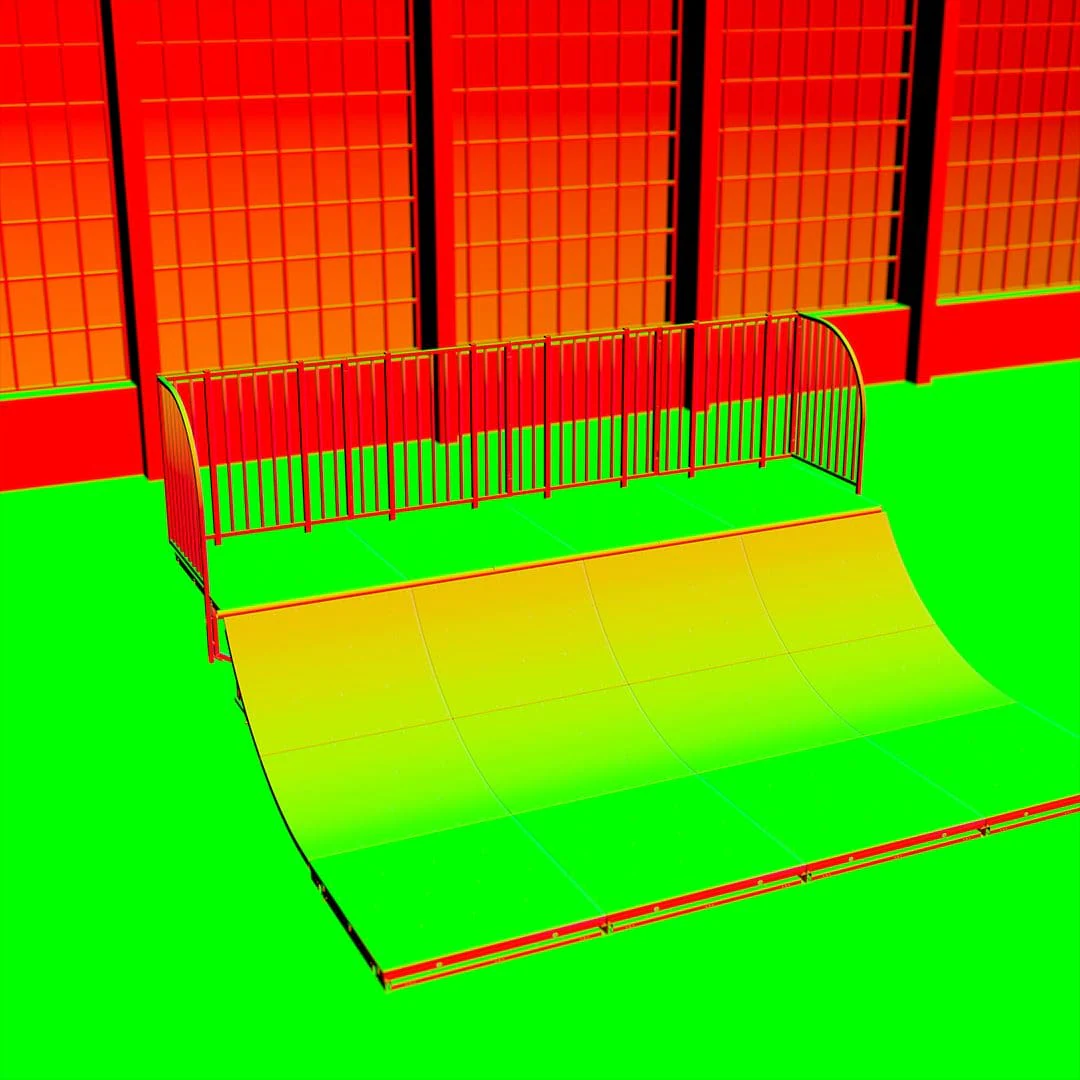
A normal map is one input to a finished image. When the surface has to hold up in a final frame, XO3D's Nanuskate technical passes: AO, raw and normals show how passes are checked in a real project. Read what look development involves, or explore directed product CGI stills.
Frequently asked questions
What is a normal map?
A normal map is an image that stores a surface direction in each pixel. In a tangent-space normal map the red, green and blue channels hold the X, Y and Z parts of that direction, so a renderer can light a flat or low-polygon surface as if it had fine detail. It changes shading only and does not alter the outline of a model.
How do I make a normal map online for free?
Open Normal Map Creator, load a photo, height map or bump map, adjust strength, level, blur and filter while you watch the 3D preview, then download the normal map. It is free, needs no account and your image stays in your browser.
Why is my normal map blue?
A flat area encodes as RGB 128, 128, 255, a pale blue, because the surface points straight out and the blue channel holds the Z part of the direction. Tilted areas move the red and green values away from 127.
What is the difference between a normal map and a bump map?
A bump map or height map is a greyscale image where brightness stands for height. A normal map stores a direction per pixel in its colour channels. The generator turns a height or bump image into a normal map using the gradient of the greys.
Should I use a DirectX or OpenGL normal map?
Use the convention your destination expects. For an existing normal PNG, choose Convert an existing normal map and declare its source and destination convention; only green is flipped when they differ. The generator Invert G option applies to maps made from height or a photo. Avoid flipping twice.
Can I make roughness or metallic maps from the same image?
Not in this tool. It exports normal, displacement, ambient occlusion and specular maps. For roughness or metalness use the Roughness Map and Metalness Map Generator pages, or Image to PBR for a full map set from one image.
Does my image leave my computer?
No. The image is read and processed in your browser, so it is not uploaded to XO3D and your files stay on your device.
Is Normal Map Creator free to use?
Yes. It is free, with no account, login or trial. It is one of the tools published by XO3D Labs.
Do I need to install anything or sign up?
No. The tool runs in your web browser on desktop and mobile, so there is nothing to download, install or sign up for.
Who created this tool?
XO3D is a UK-based, director-led product CGI studio headquartered in Stevenage. XO3D Labs is its free tool suite for 3D artists and product teams.